
LetsGo2U Register Guide for New Account Sign Up
What You Need Before LetsGo2U Register
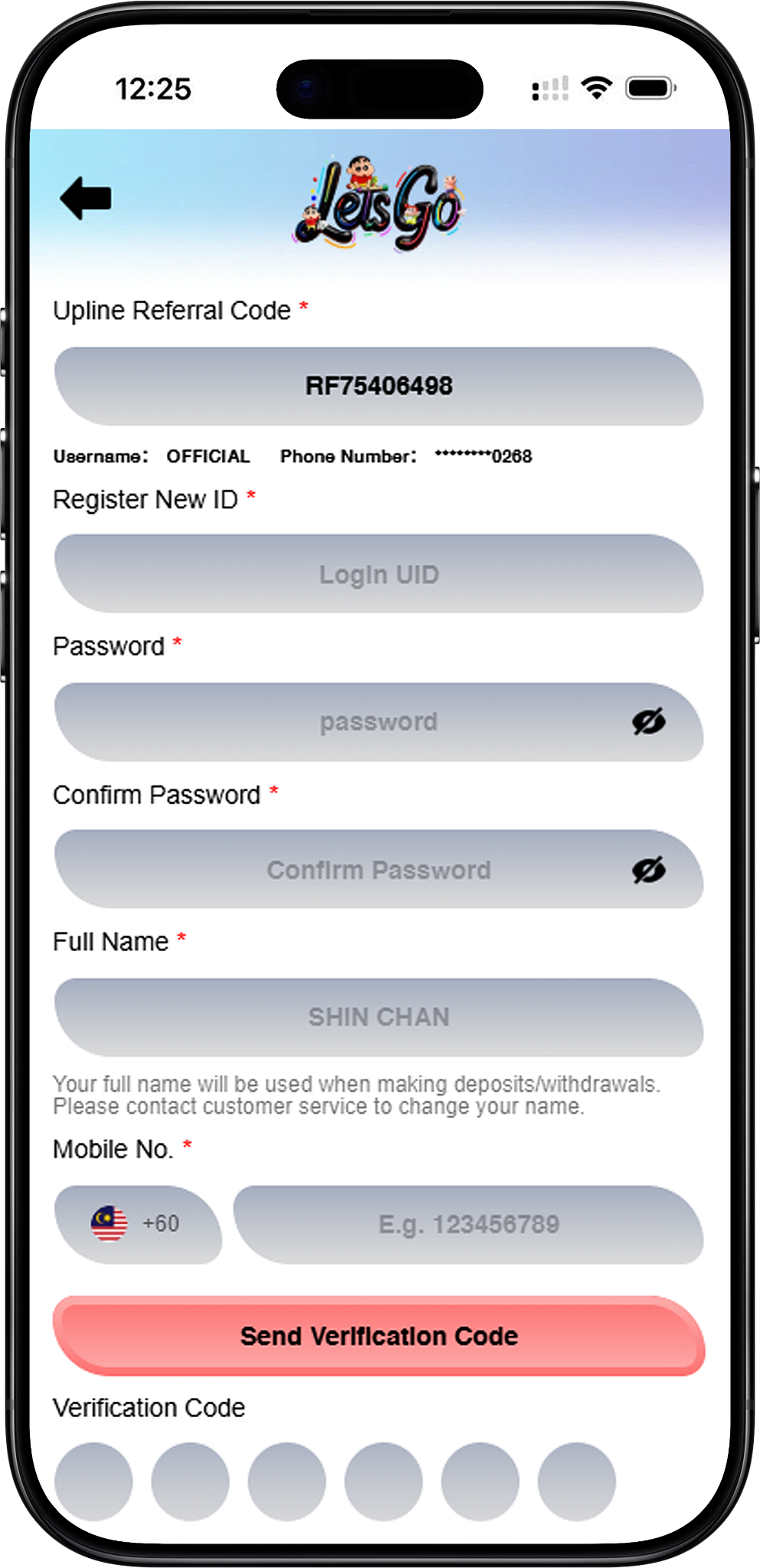
Prepare Your Registration Details
Before starting, prepare the required account information shown on the registration form. This includes an Upline Referral Code, a new Login UID, password, password confirmation, full name and mobile number. Having these details ready can make the Sign Up process easier to complete.
Use Accurate Personal Information
Enter your full name carefully. The registration form states that the full name will be used when making deposits and withdrawals, and users need to contact customer service if they later need to change it. This makes it important to review the name before submitting the account application.
LetsGo2U Register Steps
Step 1: Open the Registration Page
Start from LetsGo2U Home (/en, internal link) and select the registration option to open the Sign Up form. New users can then follow the required fields in order rather than skipping mandatory information.
Step 2: Check the Upline Referral Code
Review the Upline Referral Code displayed in the first required field. If you reached the registration form through a referral route, a code may already appear there. Confirm that the displayed information is the one you intend to use before continuing.
Step 3: Create Your Login UID
Enter a new Login UID in the Register New ID field. Choose an identifier you can remember because it will be associated with account access. After registration, use LetsGo2U Login (/en/login, internal link) when returning to your account.
Step 4: Set and Confirm Your Password
Create a password in the Password field and enter the same password again under Confirm Password. Check both entries carefully so they match before moving to the next part of the form.
Step 5: Enter Your Full Name
Fill in the Full Name field using the name you intend to use for account transactions. The registration notice explains that this information is used when making deposits and withdrawals, so accuracy at this stage is important.
Step 6: Enter Your Mobile Number
Select or confirm the displayed country calling code and enter your mobile number. The supplied registration screen shows Malaysia with the +60 calling code. Make sure the number is accessible because it is used for the verification step.
Step 7: Request the Verification Code
Select Send Verification Code (registration form action link) after checking the mobile number. Wait for the verification code to arrive before completing the code fields shown on the form.
Step 8: Enter the Verification Code
Enter the received verification digits into the Verification Code fields. Check the digits carefully before proceeding, especially if you requested the code more than once.
Step 9: Review and Register
Review the required fields, then select Register (registration form action link) to submit the Sign Up request. The registration screen states that clicking the Register button confirms that the user is above 18 years old.
Step 10: Continue to Account Access
Once your account has been successfully created, proceed through LetsGo2U Login (/en/login, internal link) for Sign In access. Users who want information about supported device options can also visit LetsGo2U Download (/en/download, internal link).
Using an Upline Referral Code
What Is the Referral Code Field?
The Upline Referral Code appears as a required field at the beginning of the supplied registration form. It identifies the referral information associated with the registration route. If a code is already displayed, review it before entering the remaining account details.
Check the Code Before Submission
Avoid changing referral information unless you have the correct code to use. A simple review before registration helps ensure that the account is submitted with the intended referral details. Users interested in referral and shareholder information after joining can visit LetsGo2U Agent (/en/agent, internal link).
Register with QR Code Access
Scan the Registration QR Code
A QR Code can provide a convenient route to the registration page on a compatible mobile device. Open the phone camera or a trusted QR scanner, scan the supplied code and check the destination before proceeding with Sign Up.
Confirm the Registration Page Before Entering Details
After scanning, verify that you have reached the intended registration page before entering account or mobile information. Users can also begin from the Official platform at https://letsgo2uofficial.com and navigate to Register.
Mobile Verification During Sign Up
Why a Mobile Number Is Requested
The supplied Sign Up form includes a required Mobile No. field followed by a Send Verification Code button and six Verification Code input boxes. This means mobile verification forms part of the displayed registration flow and should be completed before submitting the form.
Check the Country Calling Code
The example registration screen displays the Malaysian flag and +60 calling code. Confirm the calling code and mobile number before requesting a verification code to reduce the chance of entering the wrong contact information.
Enter the Code You Receive
Once the verification message arrives, enter its digits into the six code fields shown on the registration page. Do not share a verification code with another person, as verification information should be kept private.
What to Check Before Registering
Review All Required Fields
Fields marked with an asterisk are presented as required in the supplied form. Check the Upline Referral Code, Login UID, password, confirmed password, full name, mobile number and Verification Code before selecting Register.
Confirm Your Full Name Carefully
Pay particular attention to the Full Name field. According to the registration notice, the name is used when making deposits and withdrawals, while changes require contacting customer service. Users can review related transaction information through LetsGo2U Deposit (/en/deposit, internal link) and LetsGo2U Withdraw (/en/withdraw, internal link).
Explore the Platform After Registration
After completing account setup, users can explore LetsGo2U Games (/en/games, internal link), including available Poker Games, Fishing, Sportsbook and 4D Lottery sections. Promotions and account benefits should be reviewed through their respective pages so that applicable terms can be checked directly.
Frequently Asked Questions About LetsGo2U Register
What information is required to Sign Up?
The supplied registration form requests an Upline Referral Code, Login UID, password, password confirmation, full name, mobile number and Verification Code. Required fields are marked with an asterisk on the form.
What is an Upline Referral Code?
It is the referral information shown at the beginning of the registration form. A code may already be displayed when the registration page is accessed through a referral route, so users should check it before completing Sign Up.
Can I use a QR Code to reach the registration page?
Yes. The supplied materials include a QR Code for registration access. Scan it with a compatible mobile device and verify the destination before entering personal or account information.
Why do I need a Verification Code?
Mobile verification is included in the displayed registration process. After entering a mobile number, select Send Verification Code and enter the received digits into the six Verification Code fields.
What should I do if I already have an account?
There is no need to create another account through the registration form. Select Login Now (/en/login, internal link) to access the Sign In page with an existing account.
Is there an age requirement to register?
Yes. The supplied registration screen states that clicking the Register button confirms that the user is above 18 years old. Users should also follow any applicable eligibility requirements and platform terms.
Complete Your LetsGo2U Register Process
Prepare your account details, check the Upline Referral Code and mobile number, complete verification and review all required information before submitting your Sign Up request.