
LetsGo2U Download and Device Access Guide
- 1. Current LetsGo2U App Availability
- 2. LetsGo2U Download Steps for Android
- 3. LetsGo2U Download Steps for iOS
- 4. LetsGo2U Download Steps for Windows Desktop
- 5. LetsGo2U Download Steps for macOS
- 6. Website Shortcut or App Download
- 7. Access Your Account After Setup
- 8. Frequently Asked Questions About LetsGo2U Download
Current LetsGo2U App Availability
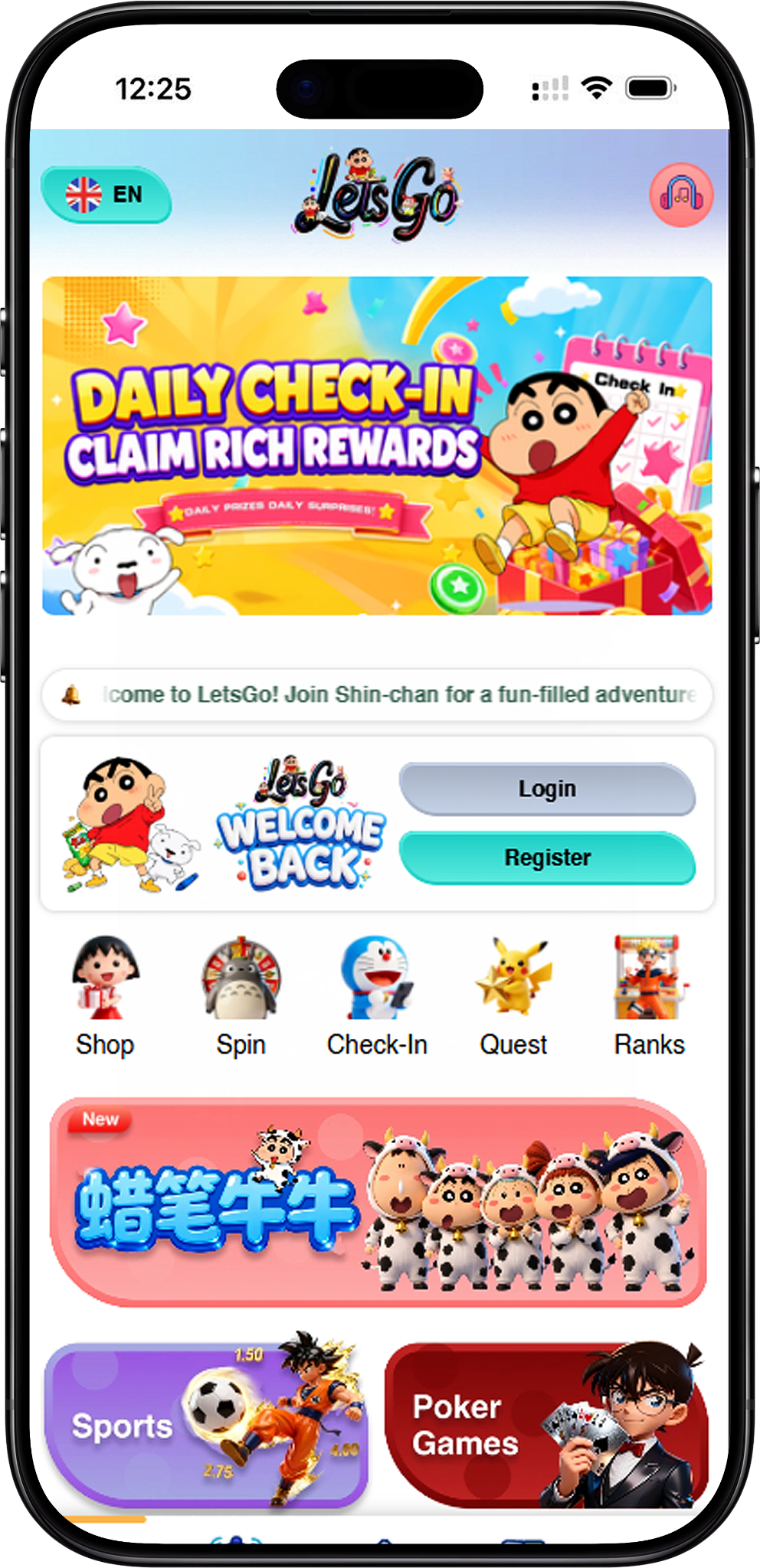
The Dedicated App Is Coming Soon
The dedicated mobile App is currently coming soon. Until an official Android APK or native iOS application becomes available, users can create a shortcut that opens the Web platform directly from their phone, tablet or computer.
Use the Official Website in the Meantime
Users can begin from https://letsgo2uofficial.com and open the platform through a supported browser. A website shortcut can then be added to the device for faster future access.
No APK Installation Is Required for a Website Shortcut
Adding the website to a home screen does not require users to install an Android APK. It creates an icon that opens the Web version through the browser. Users should check LetsGo2U Download (/en/download, internal link) for future availability information rather than downloading files from unfamiliar sources.
LetsGo2U Download Steps for Android
Step 1: Open Chrome on Your Android Device
Open Google Chrome on your Android phone or tablet. You can start from LetsGo2U Home (/en, internal link) so that the shortcut points to the intended platform.
Step 2: Open the Website
Navigate to the platform in Chrome and allow the page to finish loading. Confirm that you are on the intended page before creating the shortcut.
Step 3: Open the Chrome Menu
Tap the three-dot menu in the upper-right corner of Chrome. This opens the browser options used for creating a home-screen shortcut.
Step 4: Select Add to Home Screen
Choose Add to Home screen (Chrome browser action). Depending on the Chrome version and website configuration, the browser may display a similar installation or shortcut option instead.
Step 5: Name the Shortcut
Enter a recognizable name such as LetsGo2U and confirm the action. The website icon should then appear on the Android home screen for quicker browser access.
Step 6: Open the Shortcut
Tap the new home-screen icon to confirm that it opens the intended website. Existing users can then continue through LetsGo2U Login (/en/login, internal link), while new users can use LetsGo2U Register (/en/register, internal link).
If Chrome Shows Install App Instead
Some Chrome versions may display “Install app” instead of “Add to Home screen.” Browser wording and behavior can vary by device and version. If the expected option does not appear, refresh the page, reopen the browser menu or use Chrome’s available shortcut option rather than downloading an APK from an unknown source.
LetsGo2U Download Steps for iOS
Step 1: Open Safari
On an iPhone or iPad, open Safari. The Add to Home Screen method described here uses Safari rather than another iOS browser.
Step 2: Visit the Website
Open LetsGo2U Home (/en, internal link) in Safari and wait until the page is fully loaded before continuing.
Step 3: Tap the Share Button
Tap Safari’s Share button (Safari browser action), represented by a square with an upward arrow. Its position can vary slightly depending on the iOS or iPadOS version and device layout.
Step 4: Choose Add to Home Screen
Scroll through the Share menu if necessary and select Add to Home Screen (Safari browser action). Safari will show a preview of the shortcut before it is created.
Step 5: Customize the Shortcut Name
Enter a suitable name such as LetsGo2U and tap Add. The website icon will then appear on the iPhone or iPad home screen.
Step 6: Test the Home-Screen Access
Tap the new icon to verify that it opens the intended Web platform. From there, users can proceed to LetsGo2U Login (/en/login, internal link) or LetsGo2U Register (/en/register, internal link) as needed.
LetsGo2U Download Steps for Windows Desktop
Method 1 Step 1: Open the Website in a Browser
Open Chrome, Microsoft Edge or Firefox and navigate through LetsGo2U Home (/en, internal link). Once the page is open, you can create a shortcut using a method supported by your browser.
Method 1 Step 2: Drag the Site Icon to the Desktop
Where supported, drag the site or address-bar icon from the browser to the Windows Desktop. This creates a shortcut that opens the website in the default browser. Browser interfaces can differ, so this option may not appear identically in every version.
Method 2 Step 1: Create a Chrome Shortcut
In Chrome, open the browser menu and locate the shortcut creation option. Depending on your Chrome version, it may appear under options such as Save and Share or other shortcut-related menus rather than the older More Tools location.
Method 2 Step 2: Name and Create the Shortcut
Name the shortcut LetsGo2U and confirm. If Chrome provides an option to open the shortcut in its own window, you may select it based on your preference.
Method 3 Step 1: Use Microsoft Edge
Open the platform in Microsoft Edge and select the browser menu. Locate the Apps or site installation option provided by your current Edge version.
Method 3 Step 2: Install the Site as an App-Style Shortcut
Select Install this site as an app (Microsoft Edge browser action) if the option is available. This creates an app-style Web shortcut that can be accessed through Windows and may also be pinned according to the options provided by Edge.
Method 4 Step 1: Create a Manual Windows Shortcut
Right-click an empty area of the Windows Desktop, select New and then Shortcut. Enter the Official website address when Windows asks for the location of the item.
Method 4 Step 2: Name and Finish
Give the shortcut a recognizable name and select Finish. Double-click it afterward to confirm that it opens the intended website in your default browser.
LetsGo2U Download Steps for macOS
Safari Step 1: Open the Website
Open Safari on your Mac and visit LetsGo2U Home (/en, internal link). Wait for the correct page to load before creating a Desktop shortcut.
Safari Step 2: Drag the Website Address to the Desktop
Where supported by your macOS and Safari version, drag the website address or site icon from the address bar onto the Desktop. This can create a Web location shortcut that opens the page in a browser.
Chrome Step 1: Open the Platform
Open Chrome on macOS and navigate to the platform. Use Chrome’s current menu to locate the option for creating a website shortcut.
Chrome Step 2: Create and Name the Shortcut
Create the shortcut and use a recognizable name such as LetsGo2U. The exact menu location can change between Chrome versions, so follow the shortcut-related option shown in your current browser.
Optional Step: Customize the Shortcut Icon
macOS users who want a different visual icon may use the shortcut information options available on their system. Icon customization is optional and does not change the website or account functionality.
Website Shortcut or App Download
What a Website Shortcut Does
A website shortcut provides convenient access from a home screen or Desktop while continuing to use the Web platform. It does not automatically mean that a native application has been installed.
What an APK Means
An APK is an Android application package used to install Android software. Because the dedicated App is currently described as coming soon, users should not interpret the home-screen shortcut instructions as an instruction to download an APK.
Check Official Availability Before Installing
If a dedicated Android, iOS or Desktop application becomes available later, users should review the current LetsGo2U Download (/en/download, internal link) information before installing anything. This helps distinguish future official downloads from unrelated third-party files.
Access Your Account After Setup
Sign In with an Existing Account
After creating a device shortcut, existing account holders can select LetsGo2U Login (/en/login, internal link) and Sign In using their registered mobile number or username and password.
Create an Account First
Users without an account can visit LetsGo2U Register (/en/register, internal link) to complete Sign Up before using the account features.
Explore Available Game Categories
After account access, users can visit LetsGo2U Games (/en/games, internal link) to explore available Poker Games, Fishing, Sportsbook and 4D Lottery categories.
Review Platform Activities
Users can also navigate to LetsGo2U Promotion (/en/promotion, internal link), Check In (/en/check-in, internal link), Spin (/en/spin, internal link), Shop (/en/shop, internal link), Quest (/en/quest, internal link) and Rank (/en/rank, internal link) to review the corresponding platform sections and applicable conditions.
Find Account and Referral Information
For account-related functions, users can review LetsGo2U Rebate (/en/rebate, internal link), LetsGo2U Deposit (/en/deposit, internal link) and LetsGo2U Withdraw (/en/withdraw, internal link). Referral and shareholder information is available through LetsGo2U Agent (/en/agent, internal link).
Frequently Asked Questions About LetsGo2U Download
Is the LetsGo2U App available now?
The supplied information states that the dedicated App is currently coming soon. Users can create a website shortcut on Android, iOS, Windows or macOS while waiting for future App availability.
Can I download an Android APK now?
The supplied materials do not identify a currently available official APK. The Android instructions instead explain how to add the website to the home screen through Chrome.
How do I add the website to an Android home screen?
Open the platform in Chrome, open the three-dot menu, choose Add to Home screen when available, name the shortcut and confirm. The resulting icon provides direct browser access from the home screen.
How do I add the website to an iPhone or iPad home screen?
Open the platform in Safari, tap Share, choose Add to Home Screen, customize the shortcut name and tap Add.
Can I create a shortcut on Windows?
Yes. Windows users can create a browser shortcut, use an available Chrome shortcut option, install the site through a compatible Edge feature or manually create a Desktop shortcut.
Can I create a shortcut on macOS?
Yes. Depending on the browser and macOS version, users can create a Web shortcut from Safari or use Chrome’s available shortcut creation feature.
Is a website shortcut the same as installing the App?
No. A website shortcut opens browser-based Web access, while a native App or APK is separately installed software. The shortcut instructions are provided because the dedicated App is currently coming soon.
Do I need to create another account when using a new shortcut?
No. Existing users can continue using their registered credentials through LetsGo2U Login (/en/login, internal link). Users who do not yet have an account should complete registration first.
Add LetsGo2U to Your Device
Create a convenient website shortcut on Android, iOS, Windows or macOS while the dedicated App is coming soon, then use it to access the Web platform whenever needed.